
Capture & Import
Image Upload
OCR for multi‑language images, up to 9 per note.
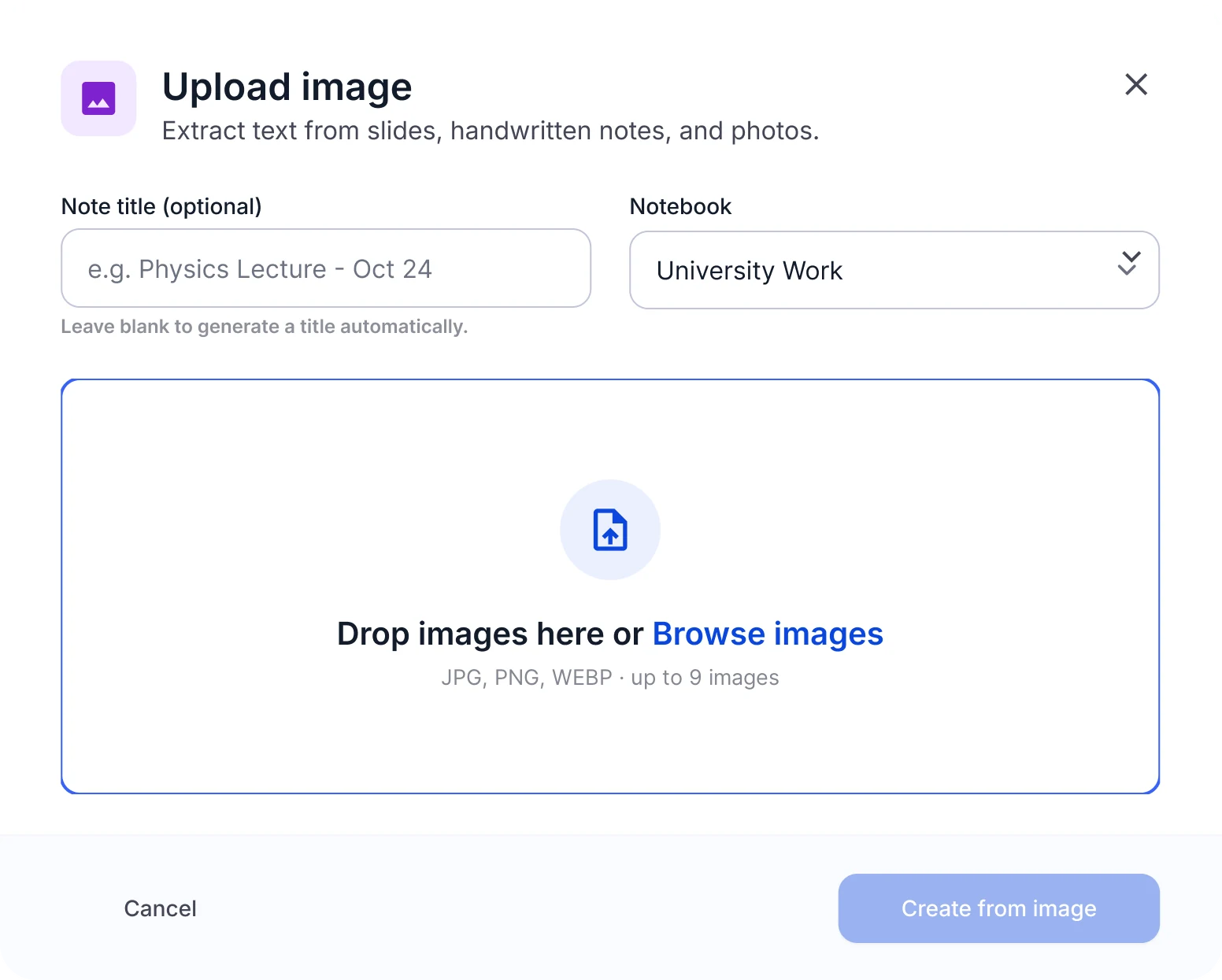
OCR scan to text and notes
- OCR recognition
- Multi‑language
- Up to 9 images per note
Image upload at a glance
- Formats
- JPG, PNG, WEBP
- Images per note
- Up to 9, combined into one note in upload order
- Photo size
- Photos are compressed automatically before upload, so large phone photos are fine
- iPhone photos
- HEIC files can't be uploaded in the browser; save them as JPG first
- Text
- Printed and handwritten text; printed text gives the cleanest results
Limits shown are current values and may change.
When to scan images
Textbook pages and whiteboards
Turn textbook pages and whiteboard photos into notes and flashcards.
Handwritten notes and worksheets
Make handwritten notes and worksheets searchable and ready for a quiz.
Slides and posters
Get a summary and a mind map from slides and posters.
How to photograph pages for clean OCR
Shoot straight on, one page per photo.
Use even light and avoid shadows and glare.
Crop each photo to the edges of the page.
Write with dark, legible strokes if you plan to scan handwriting.
Add pages in reading order; that's the order in your note.
What you get from your photos
In the Transcript tab, each original image appears with its number next to the text it produced.
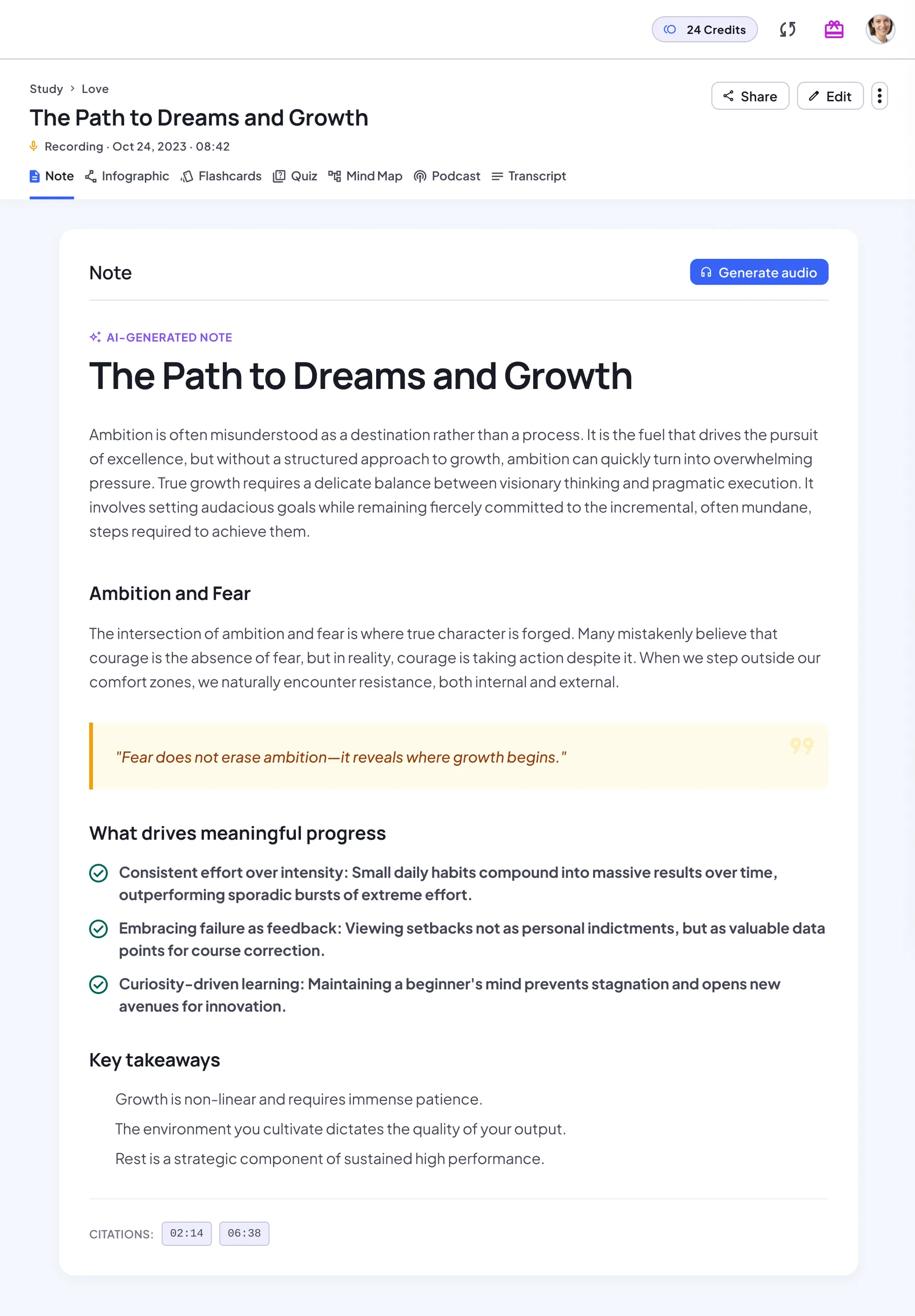
AI note
A structured note with headings, key points and key takeaways. Regenerate it anytime.
Transcript
The original text next to its source: the audio player, the document, the web link or your images in order.
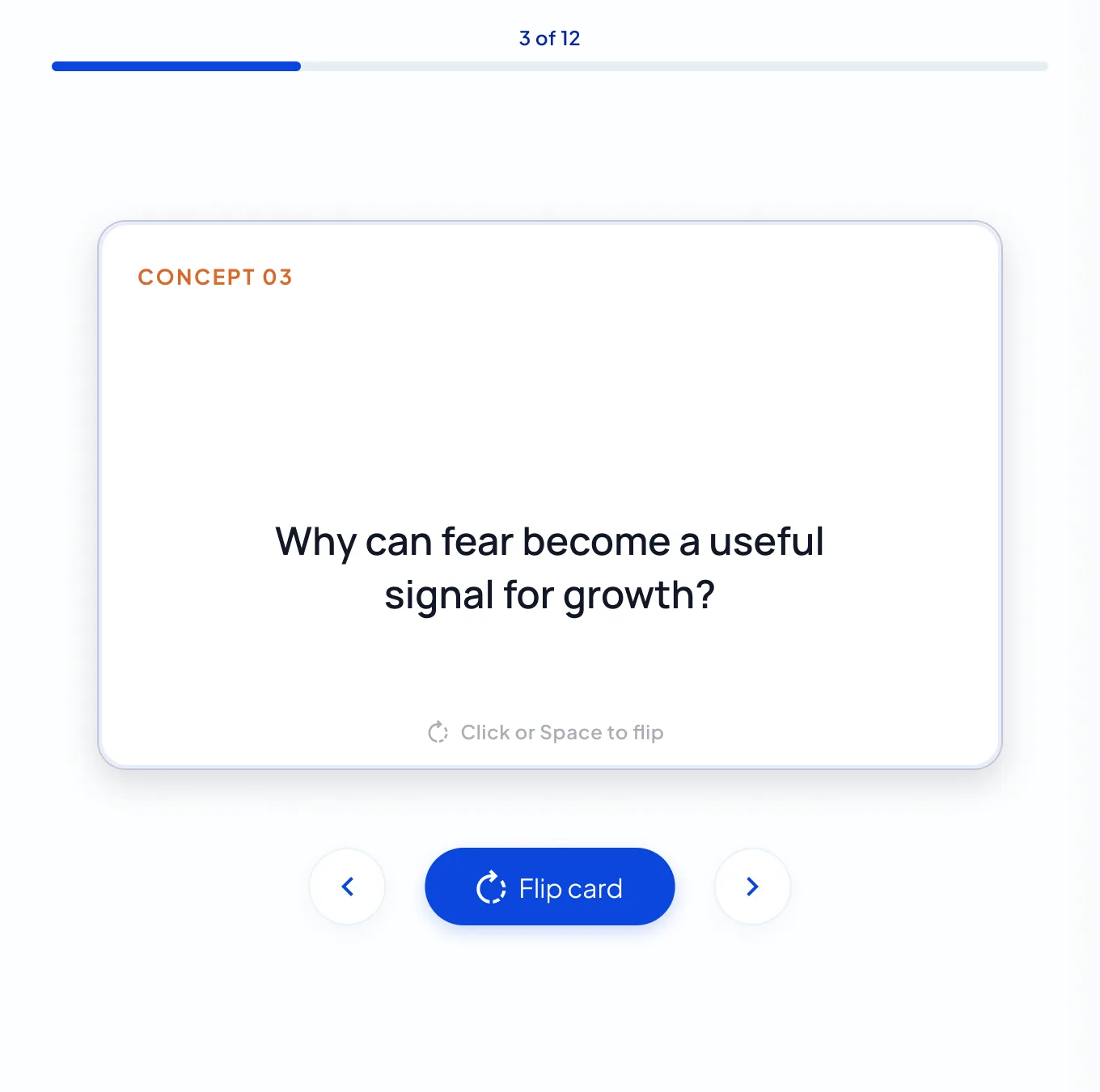
Flashcards
A deck built from the key concepts. Flip through it card by card, then restart.
Quiz
Multiple-choice questions with an explanation for every answer, a score and a full review.
Mind map
The structure of the note as a map you can zoom, pan and download.
Infographic
A one-page visual summary poster you can download or share.
Podcast
A two-host audio overview of the note, for revision on the go.
AI Chat
Ask follow-up questions and get answers based on your note.
How to scan images for OCR
Upload up to 9 images (JPG, PNG or WEBP)
Drag in photos or browse for them, up to 9 per note, in the order you want.
Run OCR and review recognized text
NoteLyn reads the text in every image. Add a title or leave it blank.
Merge pages and generate structured notes
Create the note. The images become one note, and Transcript shows each image with its number next to the extracted text.
Image scan tips
- Shoot in bright, even light to reduce shadows
- Crop each photo to the page before uploading
- Prefer printed text over cursive handwriting
Notes & limits
- Handwriting OCR quality varies by clarity
- Complex tables may need manual adjustments
Image upload FAQ
Which languages are supported?
Multiple languages are supported; contact support for specifics.
Can I merge multiple pages?
Yes. Add up to 9 images and they're combined into one note, in order.
Can NoteLyn read handwriting?
Yes. Handwriting is read the same way as printed text, with no separate setting. Results depend on how clear and dark the writing is; neat print works better than cursive.
What image formats can I upload?
JPG, PNG, WEBP. HEIC photos from an iPhone can't be uploaded in the browser, so save them as JPG first.
Can I upload a scanned PDF?
If the PDF has selectable text, use PDF Document Import. If it's a scan without a text layer, upload photos of the pages as images instead.
Is image OCR free?
Yes, you can start for free in your browser or in the mobile app. Some features need a subscription: podcasts, for example, are a Pro feature and use credits based on their length, charged only if generation succeeds.
Related tools in Note Workspace
Learn more on the NoteLyn blog
Step-by-step guides that go deeper into this way of capturing notes.