
Note Workspace
AI Summary Notes
Well‑structured notes generated from your content.
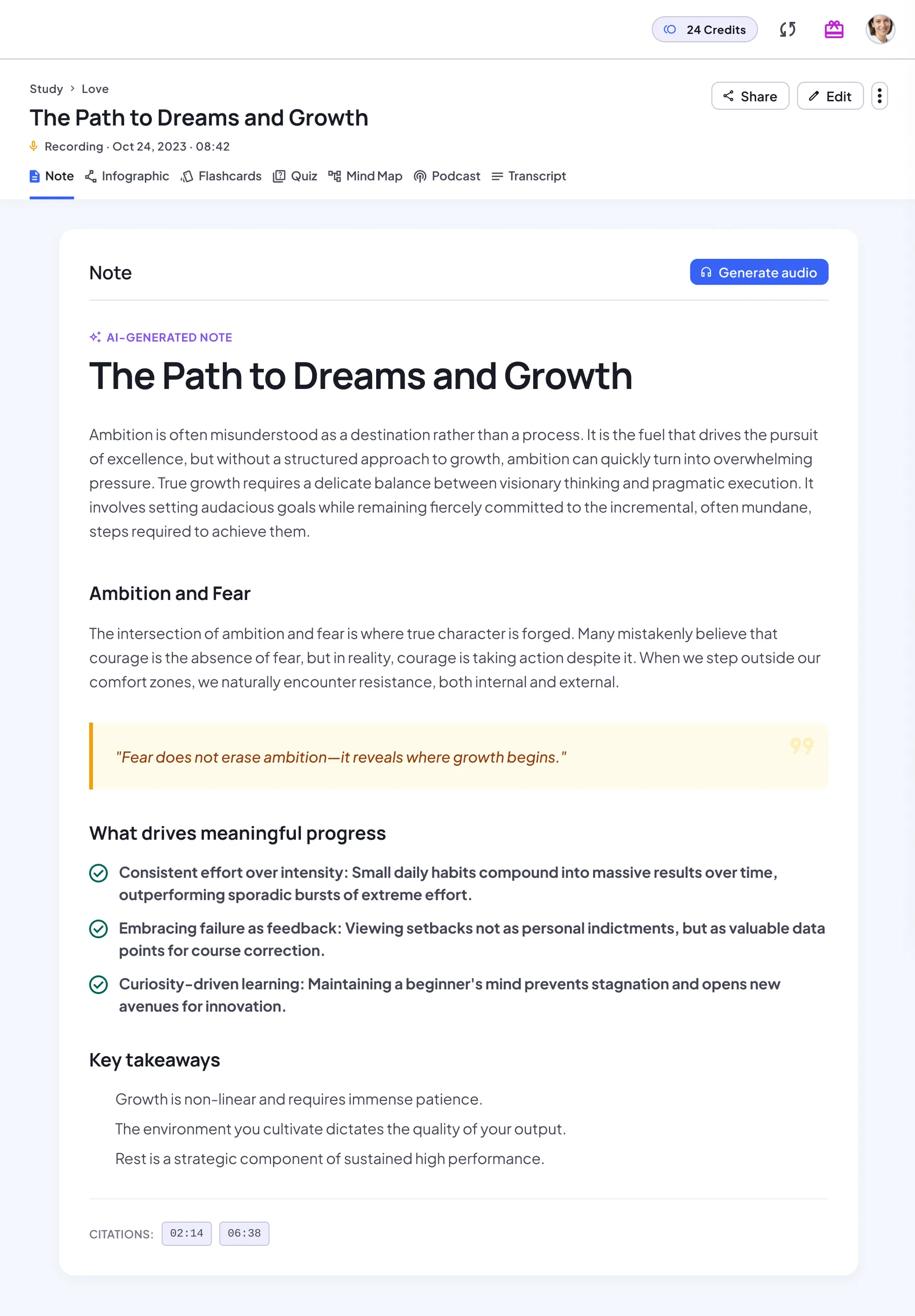
What AI Summary Notes can do
- Multi‑level outline with headings
- Key concept highlighting
- Edit in a rich text editor
- Original source kept in the Transcript tab
What a NoteLyn summary looks like
Every note opens on the Note tab. Whatever the source, the AI-written summary follows the same clear structure.
Title and headings
A clear title and multi-level headings that follow the flow of the source.
Highlighted quotes
Important lines pulled out as highlighted quote blocks.
Key points as a checklist
The main points in a list you can scan in seconds.
Key takeaways
A short wrap-up of what matters most.
The source, one tab away
The full original text or recording stays in the Transcript tab.
Summarize a whole notebook
Group related notes in a notebook, then turn them into one Notebook Summary.
One summary, many notes
Open a notebook and choose Summarize this notebook to combine every note in it.
Update it as you go
Add new notes, then update the summary so it includes the latest ones.
Study it like any note
The Notebook Summary opens as a note of its own, so you can chat with it and study from it.
When to use AI Summary Notes
- Turn long lectures into clear study notes
- Create meeting overviews for quick review
- Summarize PDFs and articles for research
How to get a great summary
- Capture content (record, upload, import or write)
- Generate the Summary in Note Workspace
- Edit the note or regenerate it as needed
Tips for better summaries
- Add headings and highlights in source notes
- Group notes by topic in notebooks
- Summarize a whole notebook to review a topic
Notes & limits
- Summary quality follows input quality
- Very noisy or unstructured content may need edits
Works with every source
Start a note from any of these and the summary is written for you:
Summary Notes FAQ
Can I edit the AI summary?
Yes. Edit any part in the rich text editor, or regenerate the whole note.
Does it support multiple languages?
Yes when your transcript or content is in that language.
Will regenerating erase my edits?
Regenerate replaces the current AI-generated note, including any edits you made to it. Your original source stays unchanged, and you’re asked to confirm first.
Which sources can I summarize?
Recordings, audio files (MP3, WAV, AAC, OGG, M4A), documents (PDF, DOC, DOCX), images of handwritten notes or slides, typed text, and web or YouTube links.
Can I summarize several notes at once?
Yes. Put them in one notebook and choose Summarize this notebook to create a single Notebook Summary.
Can I listen to the summary?
Yes. On the Note tab, choose Generate audio for a one-voice narration of the note; it usually takes less than a minute. For a two-host conversation, use the Podcast tab.