
Note Workspace
Original Transcript
The full source text, recording or file behind every note.
Transcript capabilities
- Play back recordings and audio
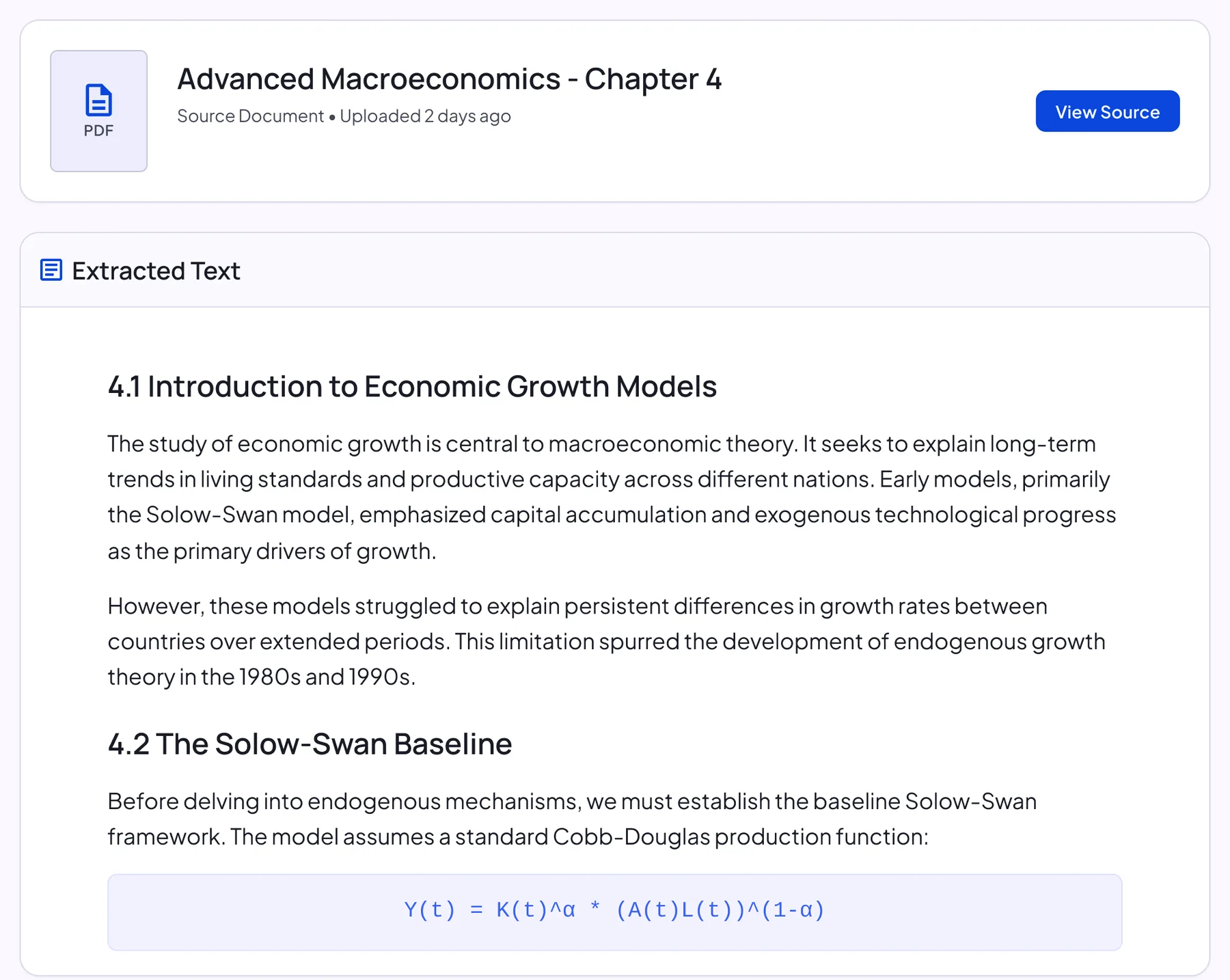
- Extracted text from PDFs, links and images
- Jump to position playback
- Open the original file or link
What you’ll see for each source
The Transcript tab always shows the original material. What it looks like depends on where the note came from:
| Source | What the Transcript tab shows |
|---|---|
| Recording or audio file | An audio player with a progress bar, plus the transcribed text |
| PDF or Word document | A file card with View Source, plus the extracted text |
| Images | Your images in a numbered grid, plus the extracted text |
| Link or YouTube video | A link to the source, plus the extracted text |
| Text note | Your original text, exactly as you typed it |
Transcript or summary?
Both live in the same note. Not sure which one has the answer? Ask AI Chat.
| Transcript | Summary | |
|---|---|---|
| Read it when | You need the exact wording, a quote or a fact to check | You want the overview or a quick review |
| What it contains | Everything in the source | Structured key points and takeaways |
| Where | Transcript tab | Note tab |
When to use the transcript
- Find quotes from lectures and interviews
- Reference decisions and tasks in meetings
- Compliance or documentation records
How to review transcripts
- Open the Transcript tab of any note
- Play the recording and review the text
- Ask AI Chat about anything unclear
Transcript tips
- Record in a quiet room for a cleaner transcript
- Fix names and terms in the note editor
- Compare the summary with the original text
Notes & limits
- Accuracy depends on audio quality
- Overlapping speech may be transcribed less accurately
Start from any source
Transcript FAQ
Can I export the transcript?
Not as a file. You can select and copy text from the page.
Can I edit the transcript?
The transcript isn't edited directly; it always shows the original source. Make corrections in the note itself.
Can I copy text from the transcript?
Yes. Select the text you need and copy it.
Can I search the transcript?
There’s no built-in search box. Use your browser’s find-in-page (Ctrl+F or Cmd+F) to jump to a word.
Is my original file kept?
Yes. For documents, View Source opens the original file, and recordings and audio files play right in the tab.