
Note Workspace
AI Q&A
Context‑aware assistant grounded on your notes.
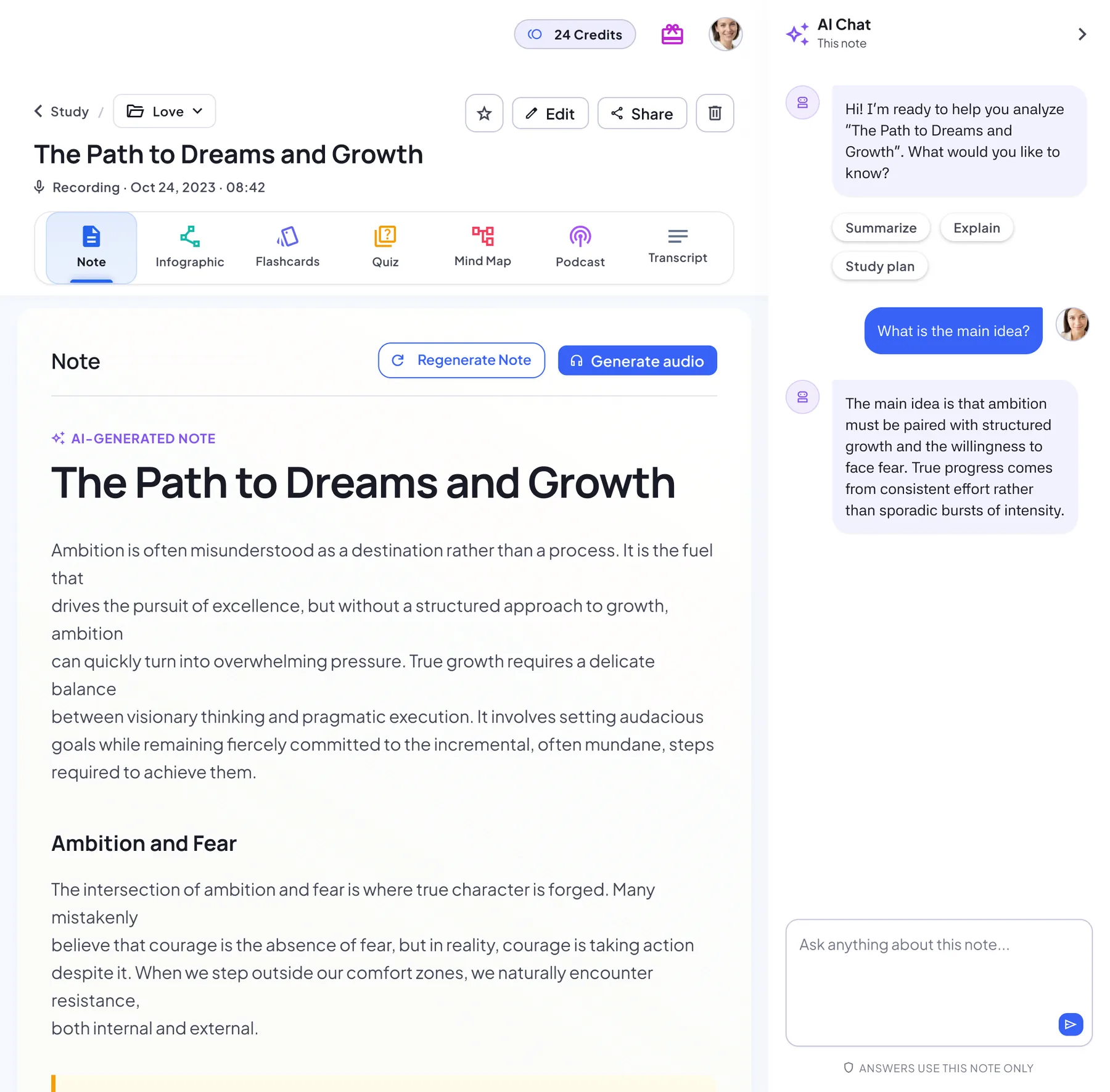
What AI Q&A can do
- Multi‑turn dialogue
- Answers use only this note
- Quick prompts to summarize or explain
Questions you can ask your notes
In the app this is called AI Chat. Type a question about the open note, or tap one of the quick prompts above the input box. A few examples:
After a lecture
- Explain the second concept in simpler words
- What might come up on the exam?
- Give me an example of this idea
After a meeting
- What did we decide?
- List the next steps and who said they’d take them
- What was left open?
From a PDF or article
- Summarize section 3
- What evidence supports the main claim?
- Define the key terms
Where AI Chat shows up
Beside every tab
Once a note is ready, the AI Chat panel sits next to every tab, from Note to Transcript.
Out of the way when you want
Collapse the panel to a slim bar and open it again when you have a question. On a phone, tap the Ask AI bubble.
From a quiz explanation
“Still unsure? Ask AI Chat” under each quiz explanation takes you straight to the panel.
Your conversation stays
Come back later and your earlier questions and answers are still there with the note.
When to use AI Q&A
- Clarify tricky parts in lectures
- Ask for decisions or next steps after meetings
- Create study prompts for revision
How to ask better questions
- Open Q&A and ask a specific question
- Use follow‑ups to dig deeper
- Add useful answers to your note in the editor
Q&A tips
- Be specific and include keywords
- Mention the section you mean for context
- Follow up with a quiz to check yourself
Notes & limits
- Grounded on your notes; new knowledge may be limited
- Requires internet for AI processing
Answers use this note only
AI Chat says it under the input box: answers use this note only. In practice that means:
- It’s good for checking what a lecture, meeting or document actually said
- It doesn’t search the web or pull in your other notes
- For general knowledge beyond the note, a general-purpose chatbot is the better tool
- The panel appears once the note has finished generating
AI Q&A FAQ
Is my data used to train models?
No, we don't use your content to train third‑party models.
How to reduce hallucinations?
Ask specific questions, mention the section you mean and split big questions into steps. Answers use only this note, so check key details in the Transcript tab.
Does it remember earlier questions?
Yes. The conversation is saved with the note, so you can scroll back and keep asking follow-up questions.
Can it search the web?
No. AI Chat answers from the open note only. If the note doesn’t cover something, it won’t fill the gap with outside sources.
Can I save an answer into my note?
Copy the answer, choose Edit and paste it where you want it. The editor supports headings, lists and to-do items.